Getting Started with TG Downloader
Learn how to install TG Downloader, add a Telegram account, download videos, batch archive channel content, and set up automatic monitoring.
Welcome to TG Downloader! This guide will help you master the most powerful Telegram download tool in just 5 minutes.
Why Choose TG Downloader?
Before we dive in, here’s what makes TG Downloader special:
- ✅ No API Key Required - Unlike other tools, you don’t need to apply for Telegram API credentials
- ✅ 100% Local Storage - All data stays on your device, never uploaded
- ✅ Multi-Account Support - Manage multiple Telegram accounts simultaneously
- ✅ Smart Auto-Monitoring - Automatically download new content from channels
Step 1: Download & Install
- Visit our official website and download TG Downloader
- Run the installer for your operating system (Windows/macOS)
- Launch the application
💡 Tip: On macOS, if you see “unidentified developer” warning, right-click the app and select “Open”.
Step 2: Add Your Telegram Account
TG Downloader uses your Telegram account to access content. Here’s how to log in:
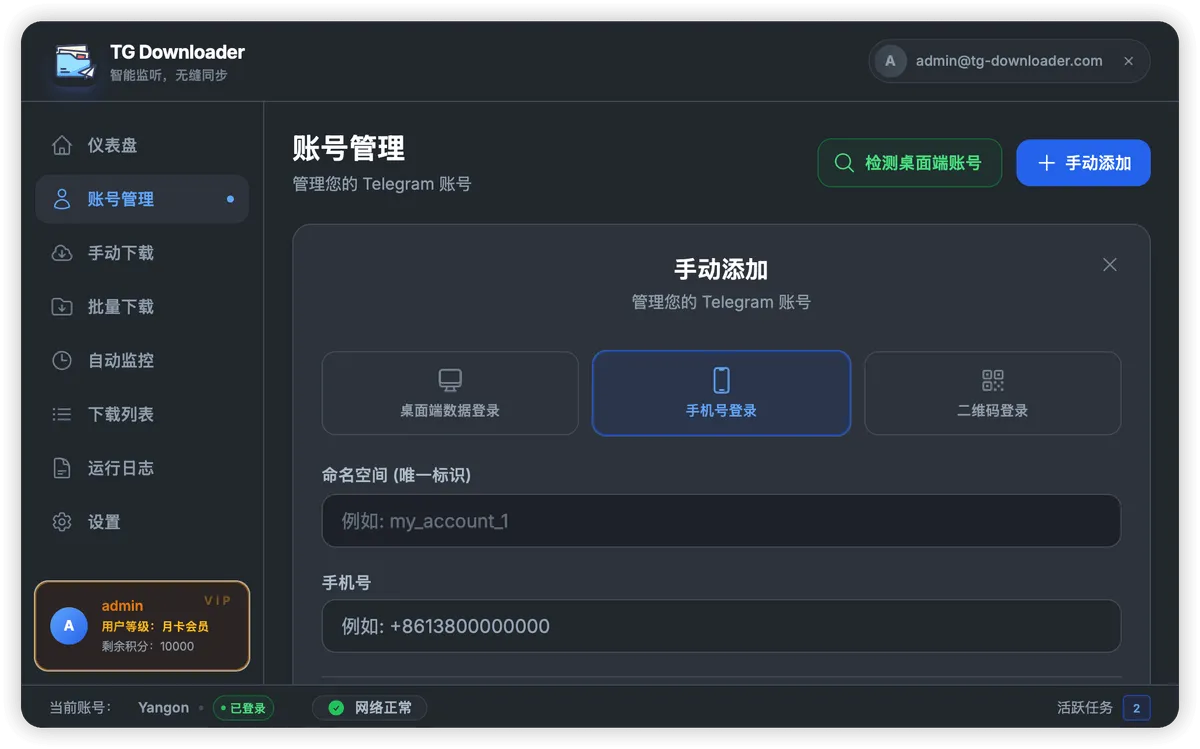
- Click “Accounts” in the sidebar
- Click ”+ Add Account”
- Choose your login method:
- 📱 Phone Verification - Enter phone number and verification code
- 📷 QR Code - Scan with your Telegram mobile app
- 💻 Desktop Import - Import from Telegram Desktop session
🔒 Security Note: Your login credentials are encrypted and stored locally only. They are NEVER uploaded to any server.
Step 3: Your First Download
Manual Download (Single File)
The quickest way to download a specific file:
- Find the message in Telegram
- Right-click and Copy Message Link
- Go to “Manual Download” in TG Downloader
- Paste the link and click “Start Download”
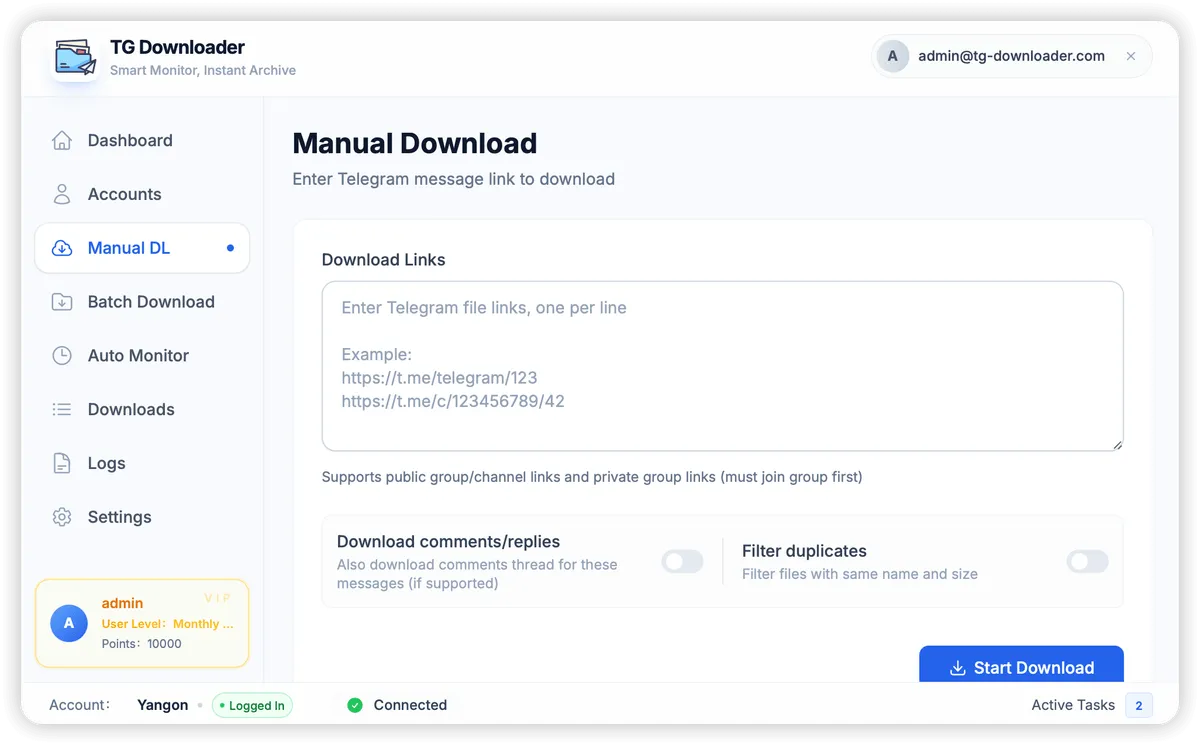
Supported link formats:
- Public channels:
https://t.me/channelname/123 - Private groups:
https://t.me/c/1234567890/123
Batch Download (Multiple Files)
Want to download an entire channel’s content? Use Batch Download:
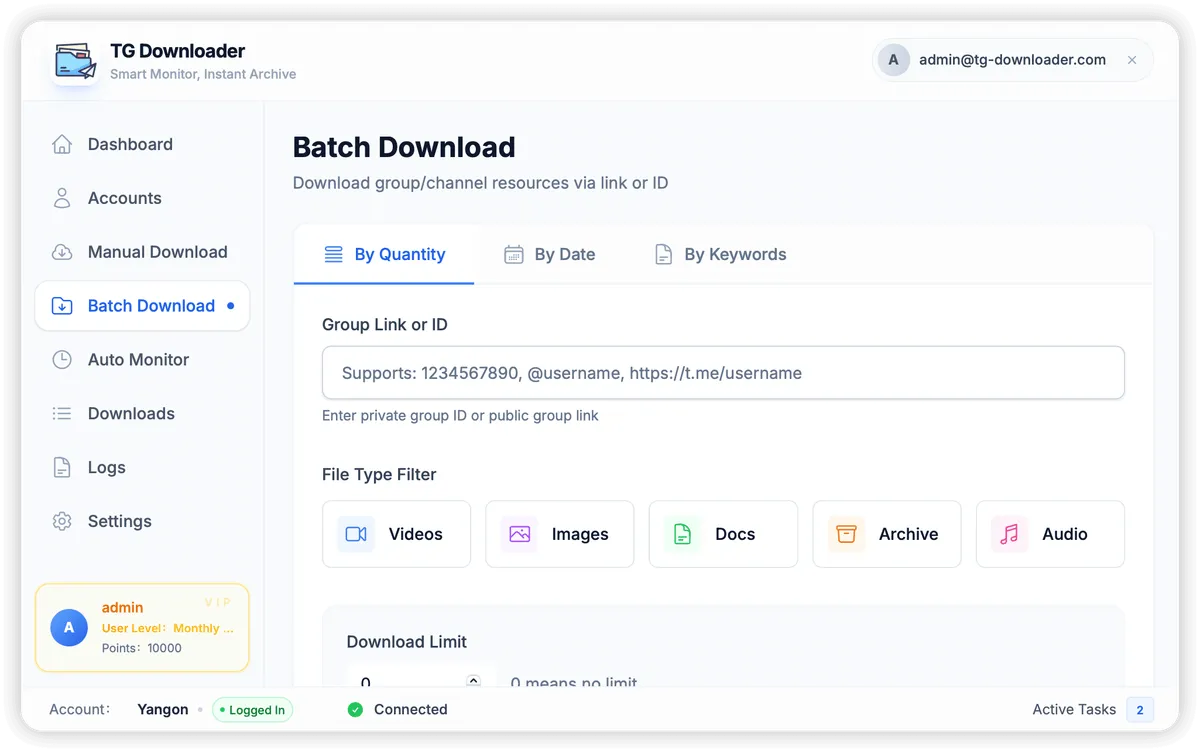
- Go to “Batch Download”
- Enter the channel link or ID
- Select your filters:
- 📹 Videos
- 🖼️ Images
- 📄 Documents
- 📦 Archives
- 🎵 Audio
- Choose download mode:
- By Quantity - Download latest N files
- By Date - Download files within date range
- By Keywords - Filter by specific keywords
- Click “Start Download”
Pro Tips:
- Set a file size limit to skip unwanted small thumbnails
- Use “Reverse Order” to download from oldest to newest
- Enable “Skip Duplicates” to avoid re-downloading
Step 4: Set Up Auto Monitoring
This is the most powerful feature! Auto Monitor watches channels 24/7 and downloads new content automatically.
Create a Monitor Task
- Go to “Auto Monitor”
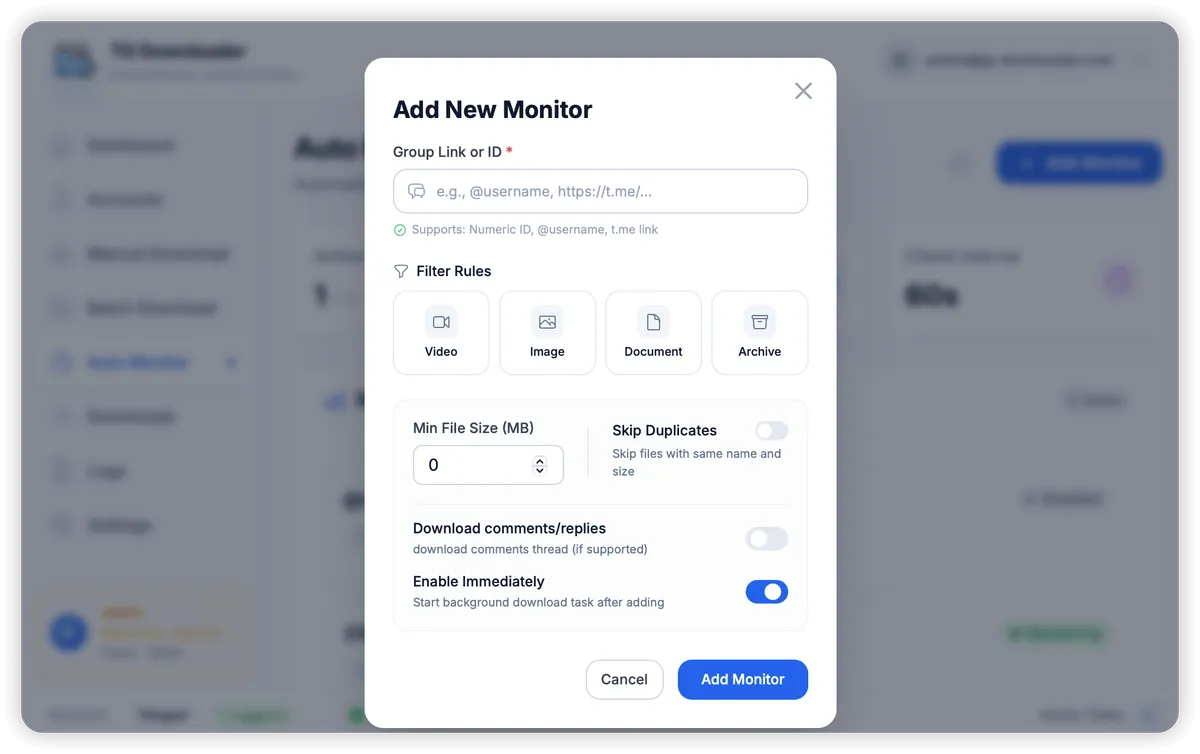
- Click ”+ Add Monitor”
- Enter the channel link or ID
- Configure filters:
- Select file types to monitor
- Set minimum file size
- Enable “Skip Duplicates”
- Toggle “Enable Immediately”
- Click “Add Monitor”
Monitor Dashboard
Once set up, you’ll see all your active monitors:
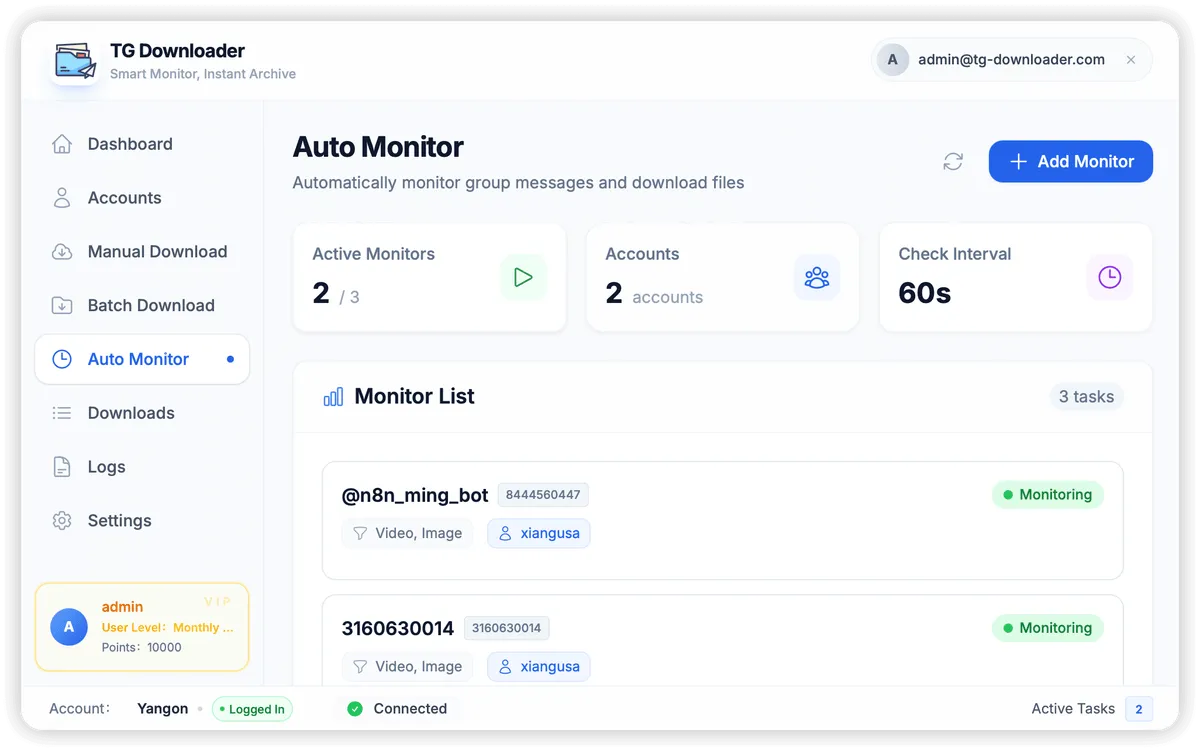
- Active Monitors: Shows running/total monitors
- Accounts: Number of accounts being used
- Check Interval: How often to check for new content (default: 60s)
Step 5: Manage Downloads
Download List
Track all your downloads in real-time:
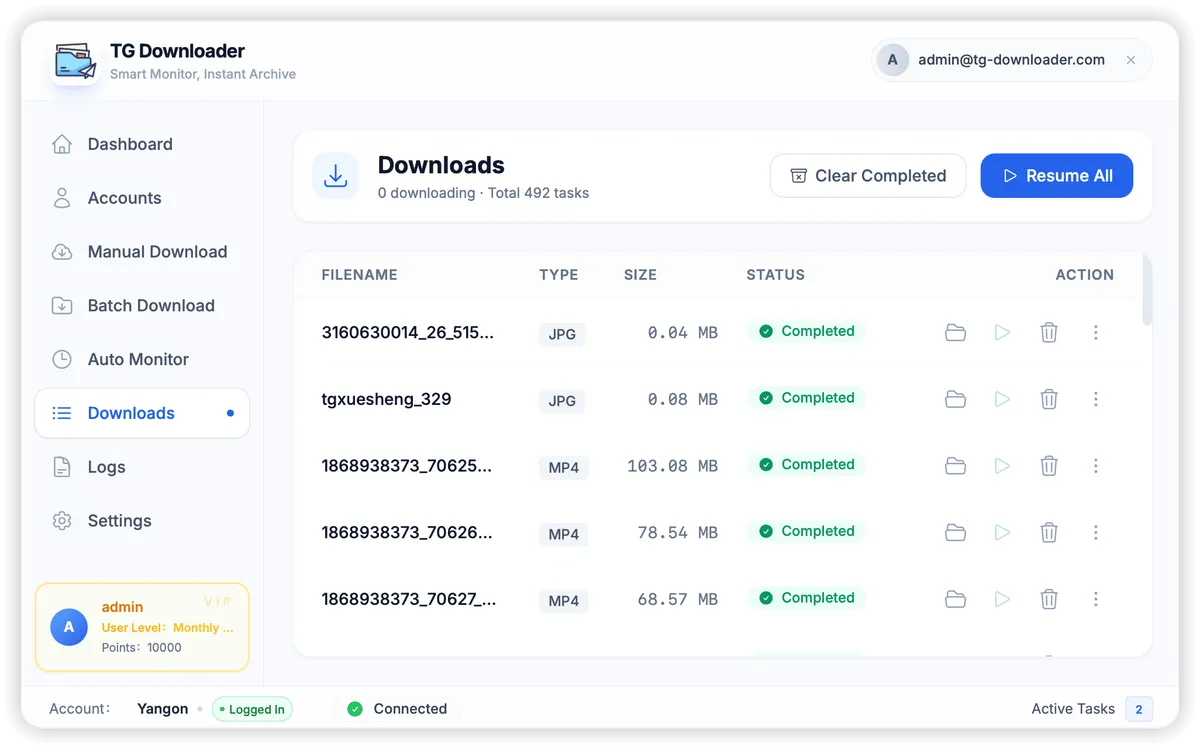
- View file name, type, size, and status
- Pause/Resume individual downloads
- Batch operations: Resume All, Clear Completed
- Open file location with one click
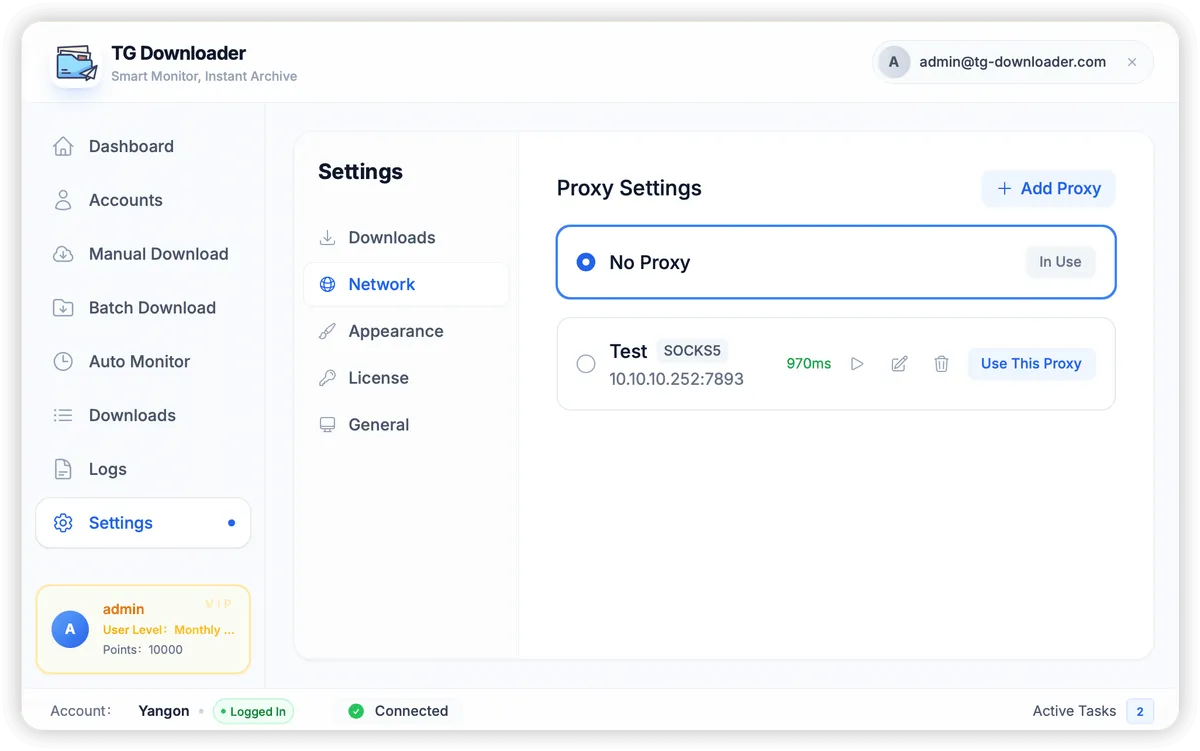
Configure Proxy (If Needed)
If you’re in a region where Telegram is restricted:
- Go to Settings → Network
- Click ”+ Add Proxy”
- Enter your proxy details (HTTP or SOCKS5)
- Click “Use This Proxy”
VIP Membership Benefits
Free users get daily download points. Upgrade to VIP for:
- 🚀 Unlimited Downloads - No daily limits
- ⚡ Faster Downloads - Priority queue
- 👥 More Accounts - Manage 10+ accounts
- 📧 Priority Support - Get help faster
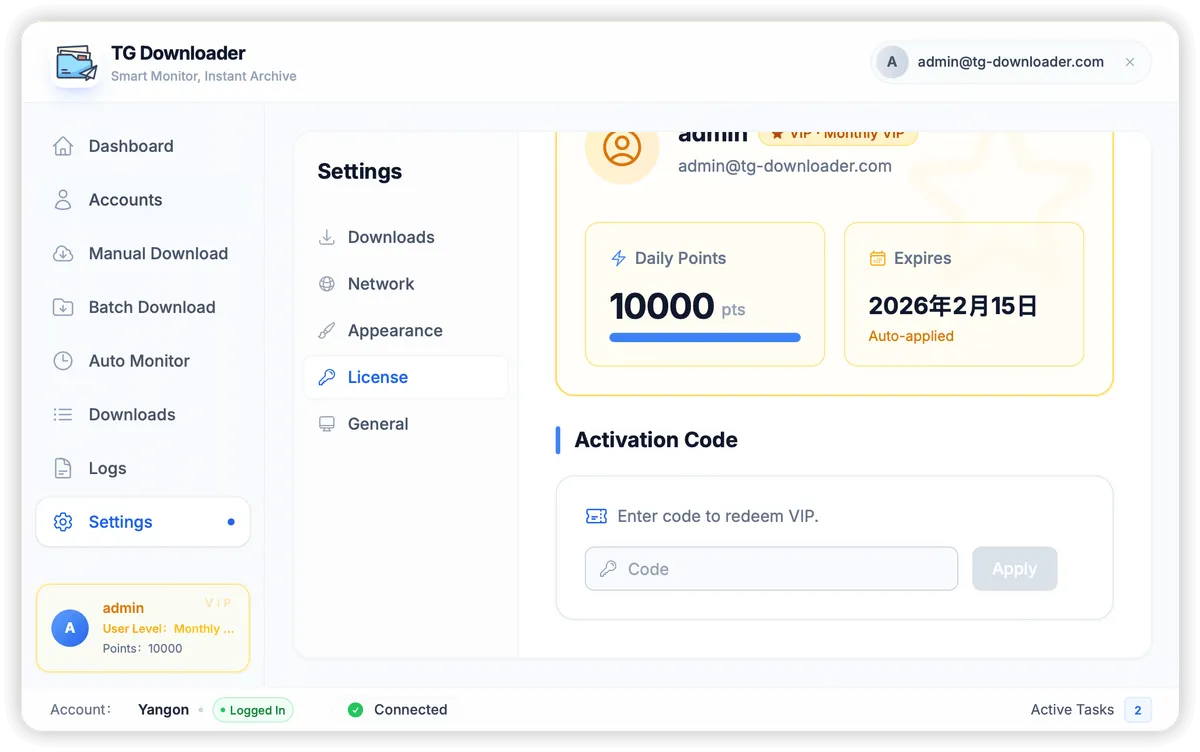
To activate VIP:
- Go to Settings → License
- Enter your activation code
- Click Apply
Common Questions
Q: Will my account get banned?
Normal use won’t result in bans. Just avoid:
- Downloading thousands of files in minutes
- Frequent login/logout cycles
Q: How do I download from private groups?
You must be a member of the group. Copy a message link from within the group - the software will extract the group ID automatically.
Q: Where are my downloaded files?
Default location: Downloads/TGDownloader/[ChannelName]/
You can change this in Settings → Downloads → Save Path.
Next Steps
Now that you’re set up, explore these advanced features:
- 📖 Batch Download Tips - Optimize your bulk downloads
- 🔒 Security Guide - Best practices for safe usage
- 📚 Full Documentation - Complete feature reference
Questions? Check our FAQ or join our Telegram community.
Happy downloading! 🎉