Add a Telegram Account
Add Telegram accounts to TG-Downloader through Desktop Data, phone verification or QR code, and choose a valid account namespace.
TG-Downloader does not sign in to Telegram by itself. Downloads use a Telegram account that is already signed in. Open Accounts → Add Manually.
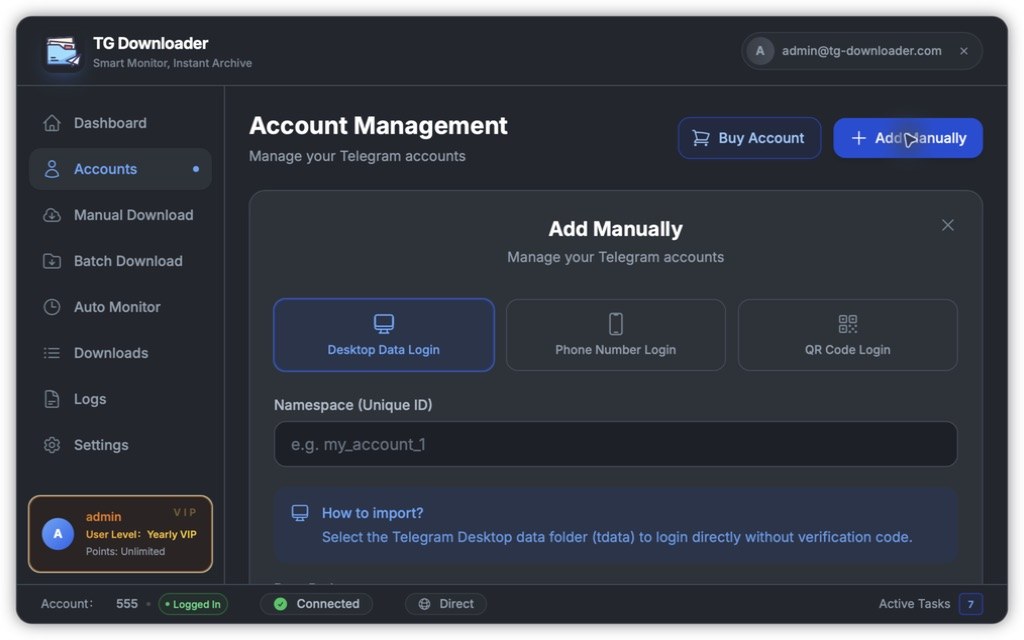
Namespace
All three options require a Namespace, which is the account’s internal name inside the app. Use letters, digits and underscores only, and keep it unique, for example main_account or dl_account_1.
The namespace separates downloads, monitors and cache for each account. It has no effect on Telegram and should not be renamed later.
Option 1: Desktop Data Login
This is the easiest method when Telegram Desktop is already signed in on the computer.
- Enter a namespace.
- The data path usually fills in automatically; select it manually if needed.
- Enter the local passcode if Telegram Desktop uses one.
- Click Login.
Common locations:
| System | Default location |
|---|---|
| macOS | ~/Library/Application Support/Telegram Desktop |
| Windows | %APPDATA%\Telegram Desktop |
See Import Telegram Desktop Accounts for more detail.
Option 2: Phone Number Login
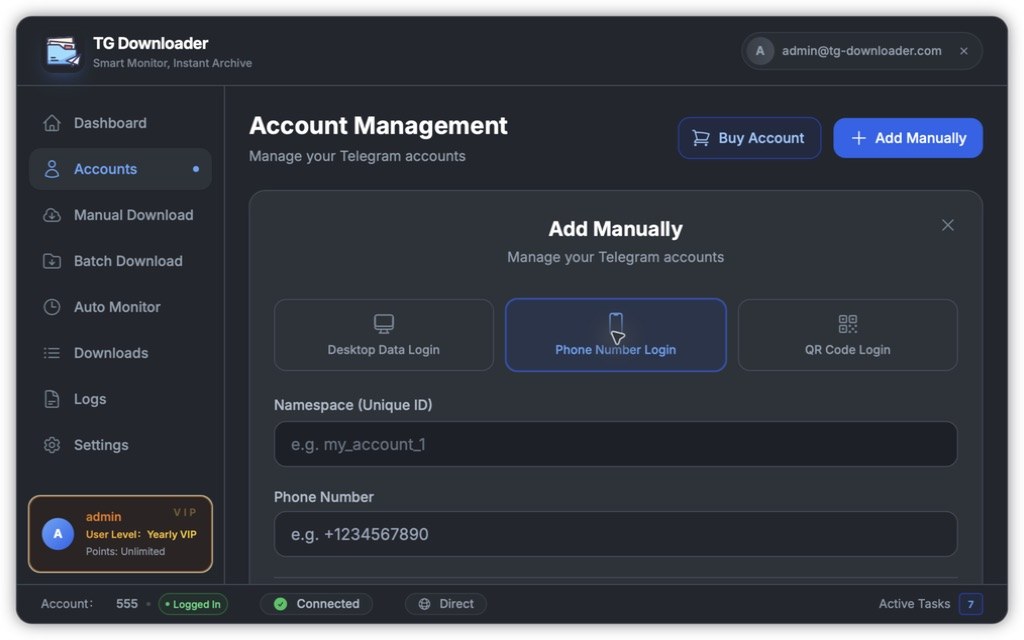
- Enter the namespace and the full phone number with country code.
- Click Send code.
- Enter the code and click Login.
- If two-step verification is enabled, enter the 2FA password.
Option 3: QR Code Login
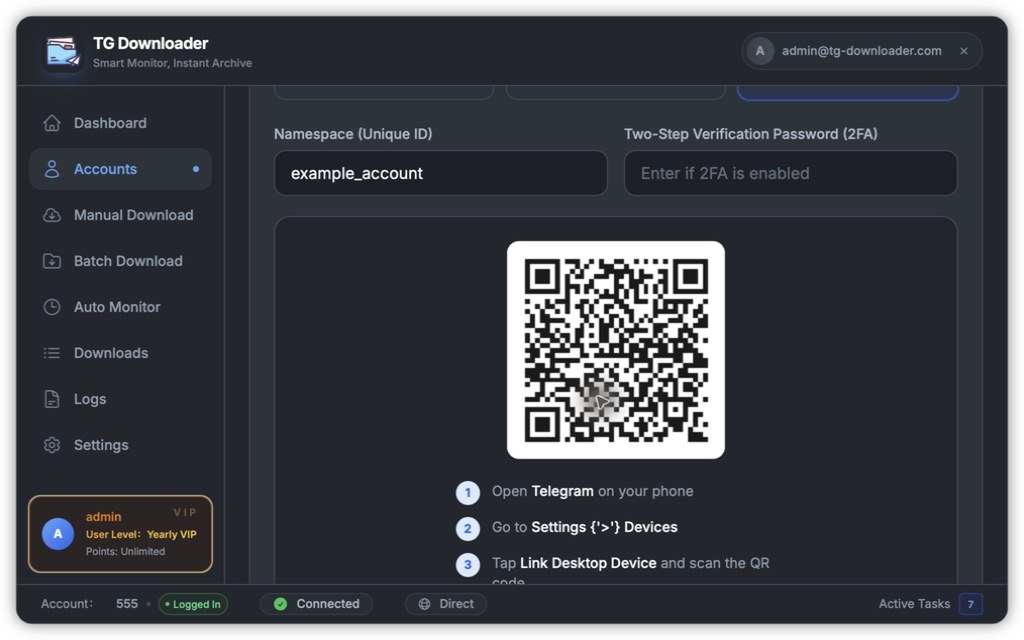
- Enter a namespace and click Generate QR code.
- On your phone open Telegram → Settings → Devices → Link Desktop Device.
- Scan the QR code.
The QR code expires. Regenerate it if needed, or click Cancel to stop.
Large download jobs can increase the chance of rate limits. A dedicated download account is usually safer.