Browser Extension Downloads
Install and connect the TG Downloader Chrome extension to download single files in Telegram Web or send selected media to the desktop app.
The TG Downloader Chrome extension adds download controls to Telegram Web messages. Save a few files directly, or select several items and let the desktop app download them through your Telegram account.
The extension is not a separate Telegram client. It never asks for your Telegram password or an API ID; it uses the Telegram Web session already open in your browser.
Two ways to download
| Method | Best for | Desktop app |
|---|---|---|
| Direct single-file download | Saving one video, photo or file | Optional |
| Send a batch to desktop | Many or large files that need a queue, concurrency and resumable downloads | Required |
Manual extension downloads are available on the free plan. Sending batches to the desktop app requires a Pro plan. See Pricing for current plan details.
If you only need single-file downloads, skip the desktop handoff steps below and install the extension directly. Complete the setup only when you need to send batches to the desktop app.
First-time setup
1. Prepare the desktop app
Open TG-Downloader, sign in to your app account and add at least one working Telegram account under Accounts. The desktop app uses this account for batch downloads.
2. Open the extension settings
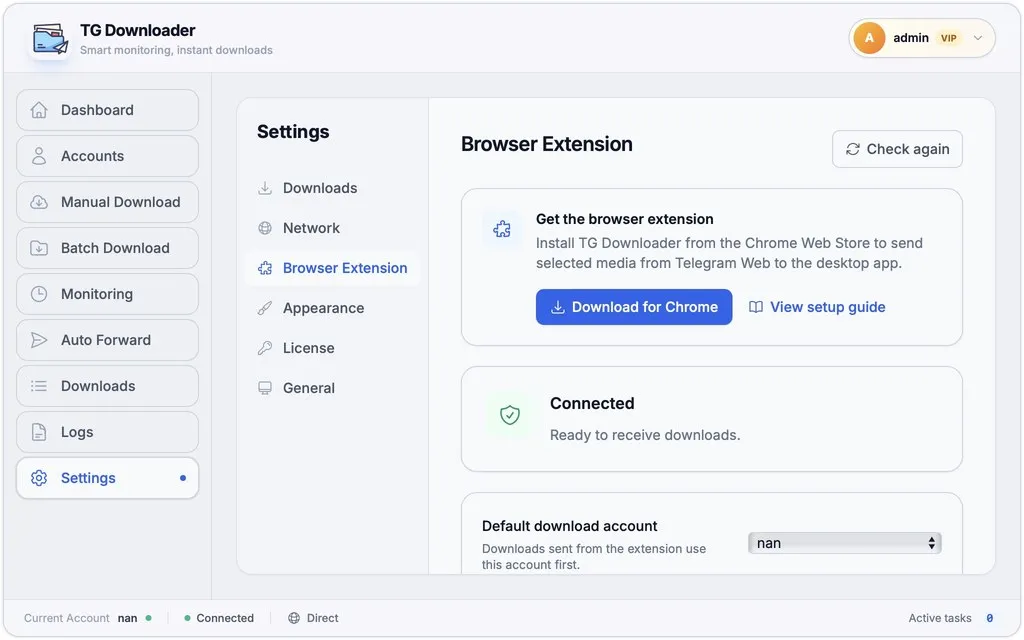
Go to Settings → Browser Extension.
3. Install the Chrome extension
Click Download for Chrome and finish the installation from the Chrome Web Store. You can also install it from the extension page.
Chrome and Chromium browsers such as Edge, Brave and Opera are supported. Both Telegram Web A and Web K are supported.
4. Confirm the connection
Return to Settings → Browser Extension. The status should say Connected.
- Connected: no further action is needed.
- Not connected: confirm the extension is installed, then click Connect.
- Extension connection not detected: click Check again.
5. Choose the default download account
Set Default download account for browser batch tasks. With Use the current account selected, the extension prefers the account currently active in the desktop app.
If that account has not joined the chat, or its Telegram session has expired, the task fails. Open Downloads and Logs for the detailed error.
Download from Telegram Web
- Open and sign in to Telegram Web in Chrome.
- Open the group, channel or chat with the media you need.
- Open the video, photo or file and wait for it to load.
- Use the TG Downloader download button beside the message.
Small single-file downloads normally complete in the browser. For a batch:
- Turn on batch selection in the extension.
- Select multiple videos, photos or files.
- Click Send to desktop.
- Open TG-Downloader and track the task in Downloads.
The extension submits only the media you explicitly select. The desktop app uses your local Telegram account to download the original file instead of relying on temporary URLs from the web page.
Access and plan rules
- Only content that your Telegram account can access is available.
- The extension does not bypass private groups, protected content or account restrictions.
- Batch downloads sent to the desktop app require a Pro plan.
- A missing Telegram account, expired session or insufficient points causes the task to fail with a visible reason.
- Repeated submissions of the same media are reused where possible to avoid duplicate tasks.
Connection or download problems
The status stays disconnected
- Confirm TG-Downloader is running and signed in.
- Click Check again under Settings → Browser Extension.
- Confirm the extension is enabled. Refresh Telegram Web or restart Chrome after installation.
- Confirm you are using Chrome or another Chromium browser.
- If it still fails, reinstall the extension and reopen its settings.
No download button appears in Telegram Web
- Refresh Telegram Web.
- Open the media once and wait for it to load.
- Confirm you are using Telegram Web A or K.
- Unsupported media, or content the current account cannot access, does not show a button.
The batch was sent but downloading did not start
Check, in order:
- Whether a new task appears under Downloads.
- Whether the default download account exists and its session is valid.
- Whether the current plan includes batch downloads.
- Whether the account has joined the source chat.
- Any ERROR entries in Logs.
For extension data handling, see the Chrome extension privacy policy.