What TG-Downloader Does and Interface Overview
Learn how TG-Downloader handles manual downloads, batch downloads and auto monitoring, and how app accounts differ from Telegram accounts.
TG-Downloader moves files from Telegram to your computer. It covers three main workflows:
| Goal | Feature |
|---|---|
| Save a file from one message | Manual Download |
| Pull a group or channel history | Batch Download |
| Keep up with new files | Auto Monitor |
All three produce tasks in Downloads, where you can track progress, pause, resume, cancel and clean up.
Three names to understand
| Name | What it is | Where to manage it |
|---|---|---|
| App account | Your TG-Downloader email account, holding membership and points | Top-right of the header |
| Telegram account | The account used to perform downloads | Accounts in the sidebar |
| Device | This computer. Concurrent-device limits depend on your plan | Recorded automatically |
The full flow is: sign in to the app account → add a Telegram account → choose a download feature. The two account types are separate.
Supported content
- Public group and channel links
- Private groups that the active Telegram account has joined
- Videos, images, documents, archives and audio
- Comments and replies when your plan supports them
TG-Downloader supports multiple Telegram accounts, HTTP / HTTPS / SOCKS4 / SOCKS5 proxies, resumable downloads, English and Chinese interfaces, and light or dark themes.
What it does not do
- It cannot download content your active account cannot access.
- It cannot recover deleted messages.
- It is not cloud storage and does not sync files or history between computers.
- It does not follow, join or forward groups for you.
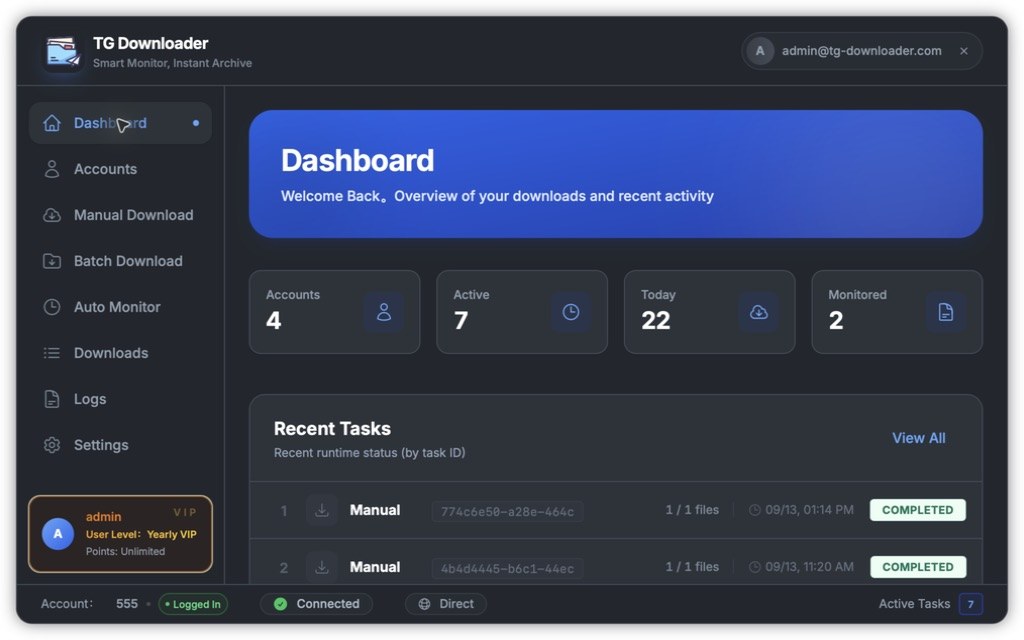
Interface overview
The interface has four areas:
- Left sidebar: Dashboard, Accounts, Manual Download, Batch Download, Auto Monitor, Downloads, Logs and Settings.
- Header: app name on the left, sign-in state or app account on the right.
- Account card: user name, membership tier and remaining points.
- Status bar: active Telegram account, network and proxy state, and running task count.
When signed out, the account card prompts you to sign in:
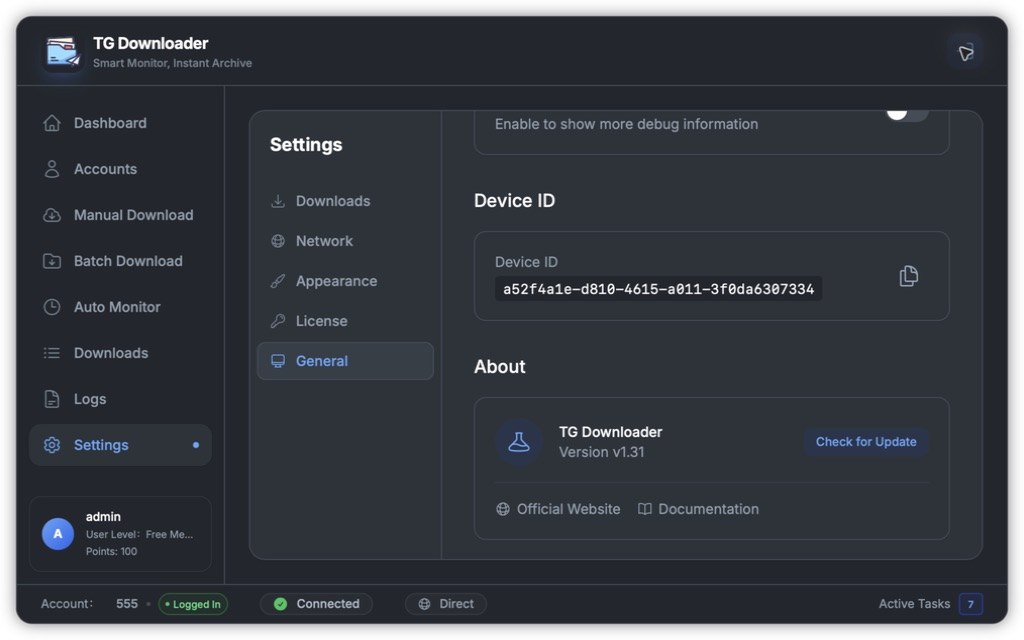
The blue dot marks the current page. The ✕ beside your email signs out; it does not close the window.