Create an Account and Sign In
Register or sign in to your TG-Downloader app account, use Google sign-in, reset a password and understand what happens to monitors when you sign out.
This page covers the TG-Downloader app account, which stores membership and points. It is not a Telegram account. To add Telegram accounts, see Add a Telegram Account.
The sign-in entry point is at the top-right of the header when you are signed out.
Sign up
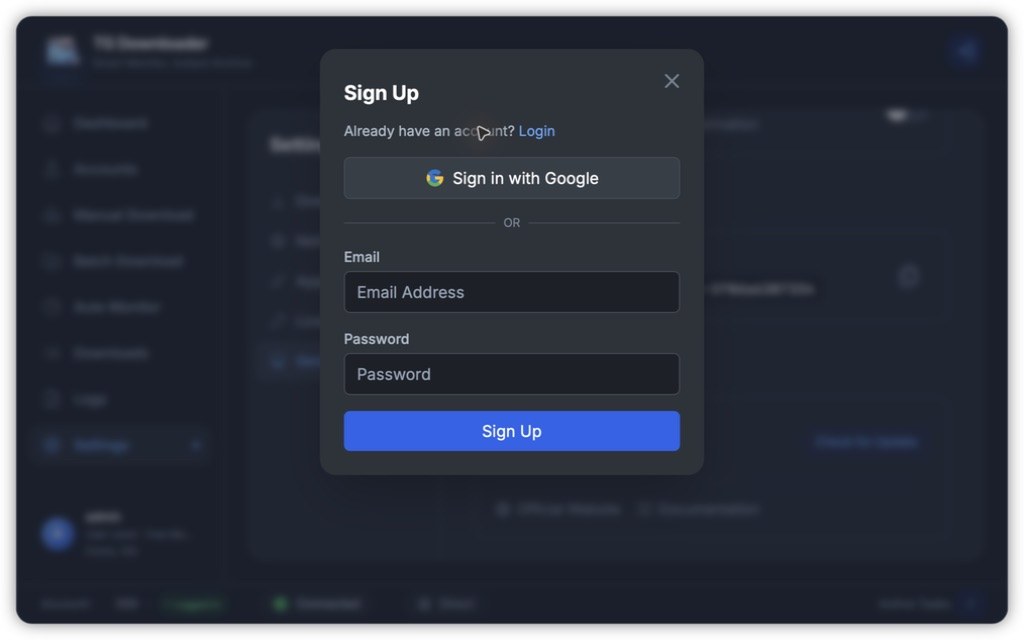
- Click the sign-in icon and choose Sign Up.
- Enter your email and a password of at least 6 characters.
- Verify the email before trying to sign in.
If your email domain is not supported, use Gmail, Outlook, QQ, 163 or another mainstream provider. On one computer, an email address can only be registered once.
Sign in
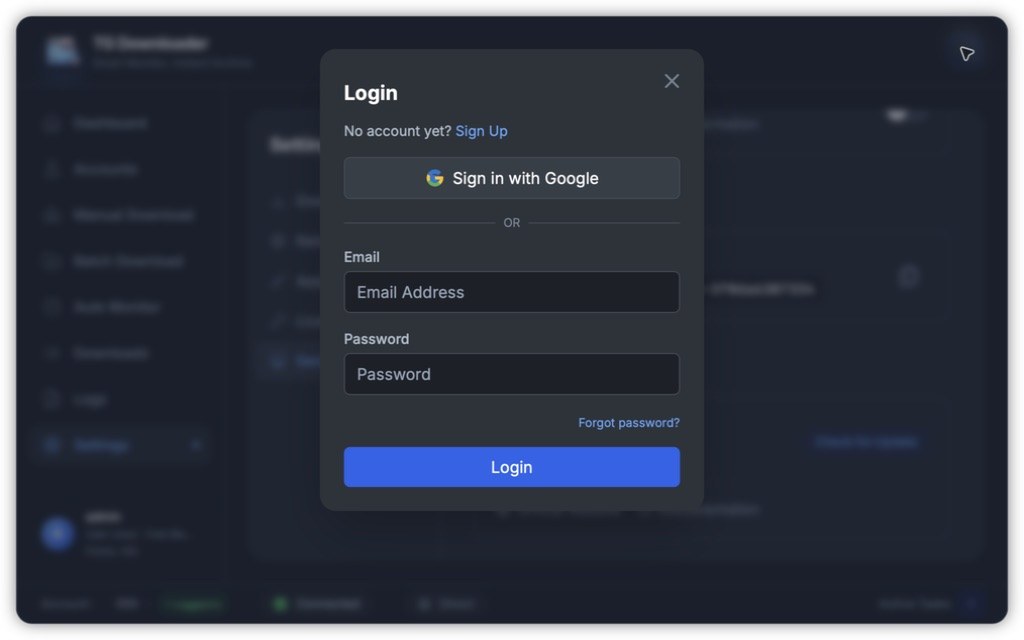
- Email + password: enter both and click Login.
- Sign in with Google: complete the browser authorization and the app signs in automatically.
After signing in, the header shows your email and the account card shows your name, tier and points.
Forgot your password
Click Forgot password?, submit your email, open the reset link, set a new password and sign in again.
Sign out
Click the small ✕ beside your email in the header.
Signing out pauses running monitors. They resume automatically after you sign back in. Downloaded files and download history are not affected.