Download Settings: Path, Folders and Concurrency
Configure the TG-Downloader download path, per-chat folders and three concurrency modes, and avoid cloud-synced or network-drive problems.
Settings has five tabs: Downloads, Network, Appearance, License and General.
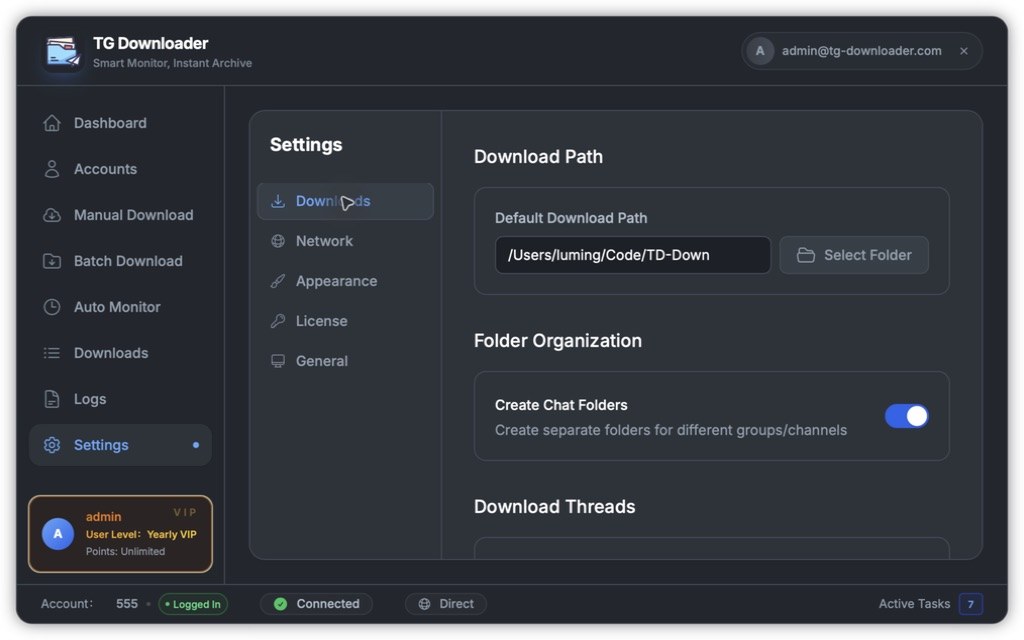
Download path
The default folder is inside your user directory. Click Select Folder to choose another folder.
- Avoid iCloud, OneDrive and other cloud-synced folders, as well as network drives.
- A large batch can use several GB, so leave enough space.
- Changing the path affects new tasks only. It does not move existing files and does not change active downloads.
Folder organization
Enable Create Chat Folders to give each group or channel its own subfolder. This keeps files from different sources separate.
Concurrency
| Setting | Default | Maximum | Applies to |
|---|---|---|---|
| Video Mode | 3 | 4 | Video files |
| File Mode | 6 | 8 | Documents and images |
| Mixed Mode | 4 | 6 | Video and files together |
The app chooses a mode from the average file size: under about 7 MB uses File Mode, over about 19 MB uses Video Mode, and values in between use Mixed Mode. Manual downloads do not know file sizes at startup, so they always use Mixed Mode.
Concurrency controls how many files download at once, not how many connections one file uses. Changing it may have little visible effect when downloading only one file.
| Situation | Suggested values |
|---|---|
| Fast connection, finish quickly | Video 4 / File 8 / Mixed 6 |
| Keep the connection usable while working | Video 2 / File 3 / Mixed 2 |
| Mechanical or external drive | Lower values to avoid a disk bottleneck |
Use the defaults if unsure. Restore Defaults resets all three values.